Best Internet Speed for IPTV Streaming USA (2026)
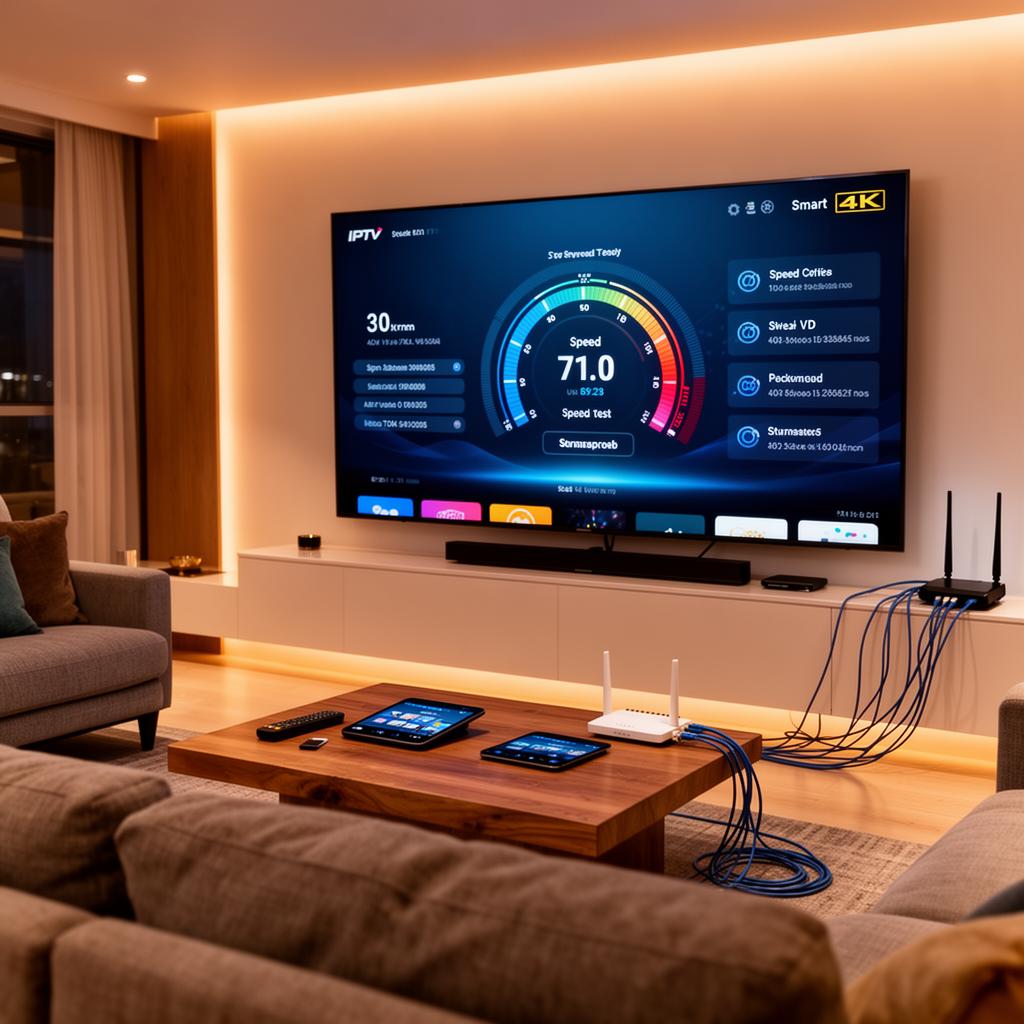
Choosing the right internet speed for IPTV streaming in the USA can mean the difference between smooth live TV and constant frustration. Whether you are watching NFL Sunday on a big-screen Smart TV, catching up on news through a Firestick, or streaming movies in 4K, your bandwidth directly shapes the experience. In this guide, we break down exactly how many Mbps you need for SD, HD, and 4K IPTV, explain why stability beats raw speed, compare Wi-Fi versus Ethernet, and share practical tips to keep every channel running flawlessly on your streaming device.
Why Internet Speed Matters for IPTV Streaming
IPTV delivers live TV and on-demand content over your internet connection instead of traditional cable or satellite. Every channel, movie, and sports event arrives as a continuous stream of data. If your connection cannot keep up, the buffer empties, playback freezes, and the dreaded loading wheel appears. Understanding how speed, stability, and device setup work together is the first step to buffer-free viewing.
Recommended Internet Speed for IPTV by Quality
The following Mbps targets are per-stream values measured on the device you watch from. Use them as a baseline when choosing or upgrading your broadband plan.
SD Streaming (480p–576p)
- Minimum: 3–5 Mbps
- Recommended: 5–10 Mbps
- SD channels consume the least data and work on almost any connection. Ideal for secondary TVs, older devices, or households with basic broadband.
HD Streaming (720p–1080p)
- Minimum: 10–15 Mbps
- Recommended: 15–25 Mbps
- Full HD is the standard for most live TV channels in the USA. A steady 20 Mbps line delivers crisp sports action and sharp news broadcasts without drops.
4K UHD Streaming (2160p)
- Minimum: 25–35 Mbps
- Recommended: 35–50 Mbps
- 4K HDR channels demand the most bandwidth. A wired connection and a modern streaming device like the Firestick 4K Max or NVIDIA Shield are strongly recommended.
Step-by-Step: Test and Optimize Your Connection
Follow these steps to confirm your internet speed is ready for IPTV and fix common issues before they ruin your viewing session.
1. Run a Speed Test on Your Streaming Device
Do not rely on a laptop test in another room. Install a speed-test app directly on your Smart TV, Firestick, or Android TV box. Aim for at least 15 Mbps for HD and 35 Mbps for 4K. Check both download speed and ping — under 30 ms is ideal.
2. Switch from Wi-Fi to Ethernet
Plug your streaming device into the router with a Cat6 Ethernet cable. This single change often eliminates buffering entirely by removing Wi-Fi congestion, wall interference, and neighbor channel overlap.
3. Use the 5GHz Wi-Fi Band
If Ethernet is not possible, move your streaming device to the 5GHz band. It is faster and less crowded than 2.4GHz. Place the router in a central, open location and reduce the number of walls between the router and TV.
4. Change Your DNS Servers
Slow ISP DNS can delay channel loading and EPG updates. Switch to a public DNS in your router or device settings:
- Cloudflare: 1.1.1.1 and 1.0.0.1
- Google: 8.8.8.8 and 8.8.4.4
5. Close Background Apps and Downloads
Cloud backups, game updates, and video downloads eat bandwidth silently. Pause them during live sports or prime-time viewing. On Firestick and Android TV, force-close unused apps to free RAM and CPU for the IPTV player.
6. Match Stream Quality to Your Bandwidth
Most IPTV apps let you pick stream quality. If you have a 15 Mbps line, select HD instead of 4K. A consistent HD picture beats a stuttering 4K stream every time.
Wi-Fi vs Ethernet for IPTV: Pros and Cons
Ethernet
- • Maximum stability — no signal drops or interference
- • Lower latency and jitter for live sports
- • Full router bandwidth reaches the streaming device
- • Best for 4K UHD and multi-TV households
Wi-Fi Limitations
- • Signal weakens through walls and floors
- • 2.4GHz band is crowded and prone to interference
- • Peak speed rarely matches the router's rated output
- • Neighbor networks can cause channel overlap
Best Practices for Buffer-Free IPTV Streaming
- Test speed during peak hours (7–11 PM) when the whole neighborhood is online.
- Upgrade your router every 3–5 years; older models lack modern 5GHz and Wi-Fi 6 support.
- Restart your router and streaming device once a week to clear memory and refresh connections.
- Use a mesh system or powerline adapter if your TV is far from the router.
- Keep IPTV apps and device firmware updated for the latest streaming optimizations.
- Monitor data caps — 4K IPTV can consume 7–10 GB per hour.
- Have a backup player installed in case your main app crashes during a big game.
Image Suggestions for Your IPTV Setup
When sharing or documenting your setup, these images help readers visualize the concepts:
- Speed test screenshot on a Smart TV — ALT text: "Internet speed test showing 50 Mbps download on a Samsung Smart TV for 4K IPTV streaming"
- Ethernet cable connected to a Firestick adapter — ALT text: "Amazon Firestick 4K with Ethernet adapter plugged into a modern router for stable IPTV streaming"
- Router placement diagram in a living room — ALT text: "Diagram showing optimal router placement for 5GHz Wi-Fi coverage to a Smart TV in a living room"
Internal Resources for Deeper Reading
For more help with setup and app selection, explore these related guides on our site:
- Firestick IPTV setup guide — step-by-step installation for Amazon Fire TV devices
- No-buffering IPTV guide — advanced fixes for freezing and stuttering streams
- Best IPTV apps for Android and Firestick — compare top players for your device
Conclusion
The best internet speed for IPTV streaming in the USA depends on the quality you want and how many people watch at once. For most households, a stable 25 Mbps connection handles HD perfectly, while 50 Mbps or more unlocks reliable 4K UHD on multiple screens. Remember: stability beats peak speed. A wired Ethernet connection, a modern router, and a few simple tweaks will give you smoother live TV than a 500 Mbps line that drops every few minutes. Test your setup, match stream quality to your real bandwidth, and enjoy buffer-free sports, news, and entertainment on every device in your home.
Ready to put your internet speed to work? Browse our IPTV subscription plans designed for American households — HD and 4K channels, full sports coverage, and instant setup on any device.
Ready to start streaming?
Explore our subscription plans and get instant access to live TV, sports and a huge VOD library on any device.
View IPTV PlansFrequently Asked Questions
More from the blog
Complete guide to high quality streaming with VOD — best devices, internet speed needs, setup steps, pros & cons, and expert tips for the ultimate on-demand experience.
Complete guide to premium 4K streaming for IPTV — best devices, internet speed needs, HDR setup, pros & cons, and expert tips for stunning Ultra HD quality.