M3U Subscription: The Complete Guide (2026)
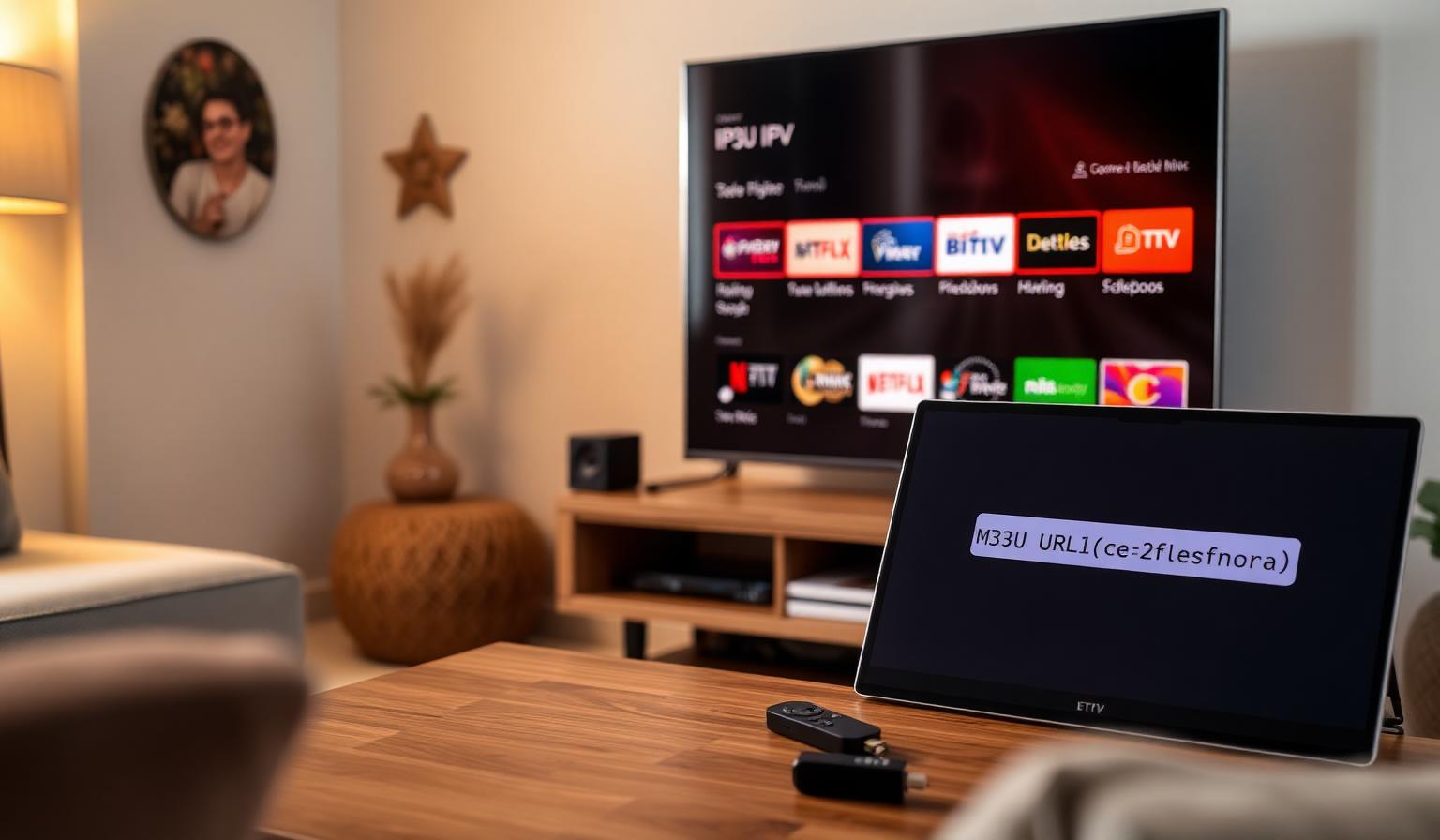
An M3U subscription is the simplest way to bring thousands of live TV channels, sports, news and movies into a single app on any device. Instead of dealing with multiple boxes, cables and cards, you get one playlist URL that loads your entire channel grid, EPG and VOD library into IPTV players like IPTV Smarters Pro, TiviMate or Smart IPTV. In this guide, you'll discover how an M3U subscription works, which devices and apps support it, how to set it up step by step, and the best practices for smooth streaming in HD and 4K. Whether you're new to IPTV or upgrading from a legacy setup, this is everything you need to make the most of your M3U subscription in 2026.
What Is an M3U Subscription?
An M3U file is a plain-text playlist that lists streaming channels and metadata. When your IPTV provider gives you an M3U or M3U8 URL, that single link contains your full channel lineup. Paste it into an IPTV player and the app does the rest — channels, categories, logos, EPG and VOD all appear automatically.
Why Choose an M3U Subscription?
- One playlist URL replaces dozens of bookmarks and apps
- Works on Smart TV, Firestick, Android, iOS, Windows and Mac
- Supports HD and 4K UHD streaming with modern codecs
- Includes EPG (TV guide) for multi-day scheduling
- Combines live channels, news, sports and VOD in one app
- Easy to switch players without losing your channel list
Best Apps for an M3U Subscription
- TiviMate — best on Android TV, Google TV and Firestick
- IPTV Smarters Pro — universal, runs on almost everything
- Smart IPTV (SIPTV) — perfect for Samsung Tizen and LG webOS
- OTT Navigator — power-user choice on Android
- XCIPTV — sleek modern UI for Android TV and Firestick
- GSE Smart IPTV — best on iPhone, iPad and Apple TV
- VLC Media Player — universal fallback for any platform
Step-by-Step: Set Up Your M3U Subscription
Step 1 — Get Your M3U URL
After signing up with your IPTV provider, you'll receive an M3U or M3U8 playlist URL by email or in your account dashboard. Copy it carefully — a single missing character will break the import.
Step 2 — Pick the Right App for Your Device
- Firestick / Android TV: TiviMate or IPTV Smarters Pro
- Samsung / LG Smart TV: Smart IPTV or IPTV Smarters Pro
- iPhone / iPad / Apple TV: GSE Smart IPTV or IPTV Smarters Pro
- Windows / Mac: VLC, IPTV Smarters Pro
Step 3 — Add the Playlist
Open your IPTV player and choose Add Playlist → M3U URL. Paste the URL, give it a name (e.g. "Home TV") and confirm. The app will fetch the channel list and EPG within a few seconds.
Step 4 — Organize Categories and Favorites
Sort channels by News, Sports, Movies, Kids and Music. Pin your top 10 channels to favorites for instant access. A clean home screen is the key to a great daily experience.
Step 5 — Optimize Picture and Sound
- Switch picture mode to Filmmaker, Cinema or Sports
- Enable HDR, Dolby Vision or HDR10+ when supported
- Use a wired Ethernet connection on your main TV for 4K streams
- Pair with a soundbar or 5.1 system for cinematic depth
Pros and Cons of an M3U Subscription
- • One URL loads your entire channel grid
- • Works on virtually every modern device
- • Supports HD and 4K UHD with EPG
- • Easy to switch IPTV players
- • Great for multi-room setups
- • Live channels, news, sports and VOD in one app
- • Quality depends on your internet speed
- • A long URL can be tricky to type with a TV remote
- • Older Smart TVs may not support modern codecs
- • Some plans limit simultaneous connections
- • Initial category setup takes a few minutes
Tips and Best Practices
- Use Ethernet on your main TV — it's the single biggest fix for buffering
- Email your M3U URL to yourself to make pasting on a TV easier
- Keep your IPTV app and Smart TV firmware up to date
- Use a 5GHz Wi-Fi band when Ethernet isn't available
- Restart your router weekly for stable streaming sessions
- Back up your favorites list when your player supports it
- Aim for 10–15 Mbps for HD and 25 Mbps+ for 4K UHD
M3U vs Xtream Codes — Which Should You Use?
Both deliver the same channels from the same provider. M3U is the simplest — one URL, universal compatibility. Xtream Codes uses a server URL with a username and password and unlocks VOD and series sections in supported players. If your app supports both, Xtream Codes gives a slightly richer experience; otherwise M3U works perfectly everywhere.
Make the Most of Your M3U Subscription
Pick the right player for your device, paste your M3U URL once, organize favorites and you're set. With a stable internet connection and a quality IPTV provider, your M3U subscription becomes a complete home entertainment hub — live TV from across the world, sports, news, movies and series in HD or 4K.
Want to dig deeper? Read our best IPTV apps in 2026 guide, our IPTV setup guide for Samsung & LG, or browse the subscription plans designed for live TV in HD and 4K on any device.
Conclusion
An M3U subscription is the simplest and most flexible way to enjoy IPTV in 2026. One playlist URL turns any Smart TV, Firestick, Android box, iPhone or PC into a complete TV hub with live channels, sports, news and VOD. Pair it with a quality IPTV player like TiviMate, IPTV Smarters Pro or Smart IPTV, organize your favorites and optimize your picture settings — and you'll have a worldwide TV setup ready to enjoy from one remote, on any screen.
Ready to start streaming?
Explore our subscription plans and get instant access to live TV, sports and a huge VOD library on any device.
View IPTV PlansFrequently Asked Questions
More from the blog
Complete guide to high quality streaming with VOD — best devices, internet speed needs, setup steps, pros & cons, and expert tips for the ultimate on-demand experience.
Complete guide to premium 4K streaming for IPTV — best devices, internet speed needs, HDR setup, pros & cons, and expert tips for stunning Ultra HD quality.