How to Use IPTV on iPhone and iPad (2026)
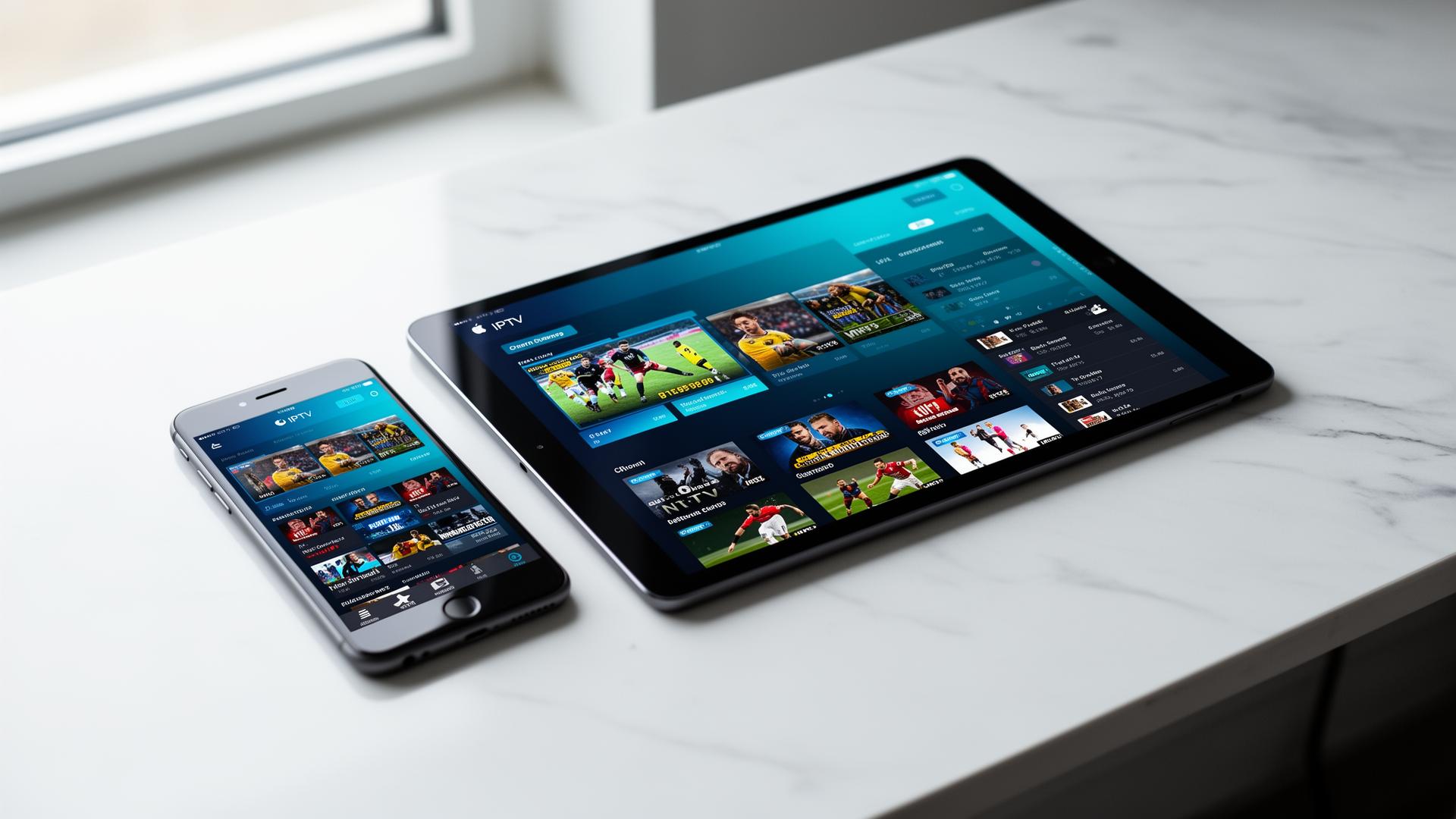
Streaming live television on your iPhone or iPad has never been easier. With the right IPTV app and a reliable subscription, you can turn your Apple mobile device into a portable TV with thousands of channels, live sports, movies and news from around the world. Whether you are commuting, traveling or simply relaxing in bed, this guide will show you exactly how to use IPTV on iPhone and iPad in 2026 — from choosing the best app to setting up your playlist and optimizing playback.
What You Need to Get Started
Before you begin streaming IPTV on your Apple device, make sure you have the following essentials ready:
- An iPhone or iPad running iOS 14 or later
- A stable internet connection — Wi-Fi recommended for HD streaming
- An IPTV subscription with M3U playlist URL or Xtream Codes credentials
- A compatible IPTV app from the App Store
If you do not yet have an IPTV subscription, our complete IPTV subscription guide explains everything you need to know before signing up.
Best IPTV Apps for iPhone and iPad
Apple devices require apps specifically designed for iOS and iPadOS. Fortunately, several excellent options are available directly from the App Store. Here are the top choices:
GSE Smart IPTV
GSE Smart IPTV is one of the most popular and feature-rich IPTV apps for iOS. It supports M3U playlists, JSON playlists, and Xtream Codes API. The app includes a built-in media player with advanced playback controls, EPG support, parental controls and casting options via Chromecast and AirPlay. The iPad version is especially well-optimized, making it our top recommendation for Apple tablet users.
IPTV Smarters Pro
IPTV Smarters Pro is a versatile all-in-one IPTV solution available on iPhone, iPad and Apple TV. Its clean interface makes it ideal for beginners while still offering advanced features like multi-screen viewing, EPG integration, VOD sections, catch-up TV and a built-in VPN. The app supports both M3U URLs and Xtream Codes login, and it synchronizes settings across devices for a seamless experience.
iPlayTV
iPlayTV is designed specifically for Apple devices with a native, Apple-style interface that feels right at home on iOS and tvOS. It supports M3U and Xtream Codes, offers a beautiful EPG grid, channel favorites, parental controls and Siri remote integration on Apple TV. While it requires a one-time purchase, its polish and stability make it a worthwhile investment for dedicated Apple users.
Step-by-Step Setup Guide
Follow these simple steps to start watching IPTV on your iPhone or iPad:
Step 1: Download Your Chosen App
Open the App Store on your iPhone or iPad. Search for GSE Smart IPTV, IPTV Smarters Pro or iPlayTV. Download and install the app. If you choose iPlayTV, you will need to purchase it before installation.
Step 2: Obtain Your Playlist or Login Details
Your IPTV provider will send you either an M3U playlist URL or Xtream Codes credentials (server URL, username and password) after you subscribe. Check your email or provider dashboard for this information. Keep it handy for the next step.
Step 3: Add Your Playlist to the App
The exact process varies slightly by app, but the general steps are the same:
- Open the IPTV app on your iPhone or iPad.
- Tap the menu icon and select "Add Playlist" or "Add User".
- Choose "Load from URL" if you have an M3U link, or "Xtream Codes API" if you have login credentials.
- Enter the URL or fill in your username, password and server address.
- Tap "Add" or "Login" and wait for the app to load your channels.
Step 4: Organize Your Channels
Once your playlist loads, you will see your available channels and categories. Take a moment to explore the interface. Most apps let you create a favorites list, hide unwanted categories, and rearrange channel groups. Setting this up early makes daily browsing much faster.
Step 5: Start Watching
Tap any channel to start streaming. Use the on-screen controls to switch channels, adjust volume, enable subtitles, or cast to a larger screen. If your app supports EPG, you can browse the program guide to see what is currently airing and what is coming up next.
Tips for the Best iPhone and iPad Experience
Optimize Your Connection
- Use a 5GHz Wi-Fi network for smoother HD and 4K streaming.
- Close unnecessary background apps to free up memory and bandwidth.
- Position your router close to where you usually watch or use a Wi-Fi extender.
- If traveling, test your mobile data speed before streaming to avoid unexpected charges.
Maximize Your App Features
- Enable EPG auto-refresh in your app settings to keep the program guide current.
- Create a favorites list for quick access to your most-watched channels.
- Set up parental controls if children use your device.
- Explore picture-in-picture mode on iPad for multitasking while watching.
- Use AirPlay to cast to Apple TV or compatible Smart TVs for a bigger screen.
Common Issues and How to Fix Them
Stream Keeps Buffering
Check your internet speed. You need at least 10 Mbps for HD streaming. Try switching from mobile data to Wi-Fi, lower the stream quality in the app settings, or restart your router.
Channels Won't Load
Verify your M3U URL or Xtream Codes credentials are correct. Ensure there are no extra spaces. Contact your provider to confirm your subscription is active and the playlist URL has not changed.
App Crashes Frequently
Update the app to the latest version from the App Store. Restart your device. If the issue persists, try reinstalling the app or switching to an alternative IPTV player.
Audio and Video Out of Sync
Most IPTV apps include an audio offset adjustment in the playback settings. Look for "Audio Delay" or "Sync" options and adjust until the lip movements match the sound.
Pros and Cons of Using IPTV on iOS
Advantages
- Watch live TV anywhere with an internet connection
- No additional hardware needed — your iPhone is the receiver
- High-quality apps available on the official App Store
- AirPlay and Chromecast support for big-screen viewing
- Picture-in-picture and multitasking on iPad
- Notifications for upcoming shows and live events
Disadvantages
- High mobile data consumption on cellular networks
- Smaller screen than TV for extended viewing
- Battery drain during long streaming sessions
- Some apps require payment for full features
- App Store policies occasionally restrict IPTV apps
- Touch controls can be less precise than a physical remote
Streaming to a Bigger Screen
While the iPhone and iPad offer excellent portability, sometimes you want the big-screen experience. Here are the best ways to cast IPTV from your Apple device to your television:
- AirPlay: If you own an Apple TV or an AirPlay-compatible Smart TV, simply tap the AirPlay icon in your IPTV app and select your TV. The stream will mirror or extend to the larger display wirelessly.
- Chromecast: Apps like GSE Smart IPTV support Google Chromecast. Tap the cast icon, choose your Chromecast device, and enjoy IPTV on any HDMI-equipped TV.
- Lightning to HDMI Adapter: For a wired, zero-lag solution, connect your iPhone or iPad directly to your TV using Apple's official Lightning or USB-C to HDMI adapter.
- Apple TV App: If your IPTV service has a dedicated Apple TV app, you can install it directly on your Apple TV 4K or Apple TV HD and use your iPhone as a remote or secondary screen.
Conclusion
Using IPTV on your iPhone or iPad opens up a world of live television that travels with you wherever you go. With apps like GSE Smart IPTV, IPTV Smarters Pro and iPlayTV, setup is straightforward and the viewing experience rivals dedicated streaming devices. By following the steps in this guide, optimizing your connection, and taking advantage of casting features, you can enjoy thousands of live channels on your Apple mobile devices in 2026 and beyond.
For more Apple-specific IPTV advice, read our guide on the best IPTV apps for Apple devices in Europe. If you are exploring other platforms, our best IPTV apps for 2026 article covers the top players across all ecosystems.
Image suggestions for this post
- iPhone IPTV setup walkthrough: Step-by-step screenshots of adding an M3U playlist in GSE Smart IPTV on an iPhone — ALT: "Step-by-step screenshots showing how to add an M3U playlist in GSE Smart IPTV app on iPhone"
- iPad multitasking streaming: iPad in split-screen mode with IPTV app playing live sports on one side and Safari browsing on the other — ALT: "iPad Pro in split-screen multitasking mode with IPTV Smarters Pro streaming live football on one half and web browser on the other"
- AirPlay casting demonstration: iPhone casting IPTV stream to a large Smart TV via AirPlay in a modern living room — ALT: "iPhone casting IPTV live TV stream to a large Smart TV using AirPlay in a modern minimalist living room"
Ready to start streaming?
Explore our subscription plans and get instant access to live TV, sports and a huge VOD library on any device.
View IPTV PlansFrequently Asked Questions
More from the blog
Complete guide to high quality streaming with VOD — best devices, internet speed needs, setup steps, pros & cons, and expert tips for the ultimate on-demand experience.
Complete guide to premium 4K streaming for IPTV — best devices, internet speed needs, HDR setup, pros & cons, and expert tips for stunning Ultra HD quality.