IBO Player: The Complete IPTV Guide (2026)
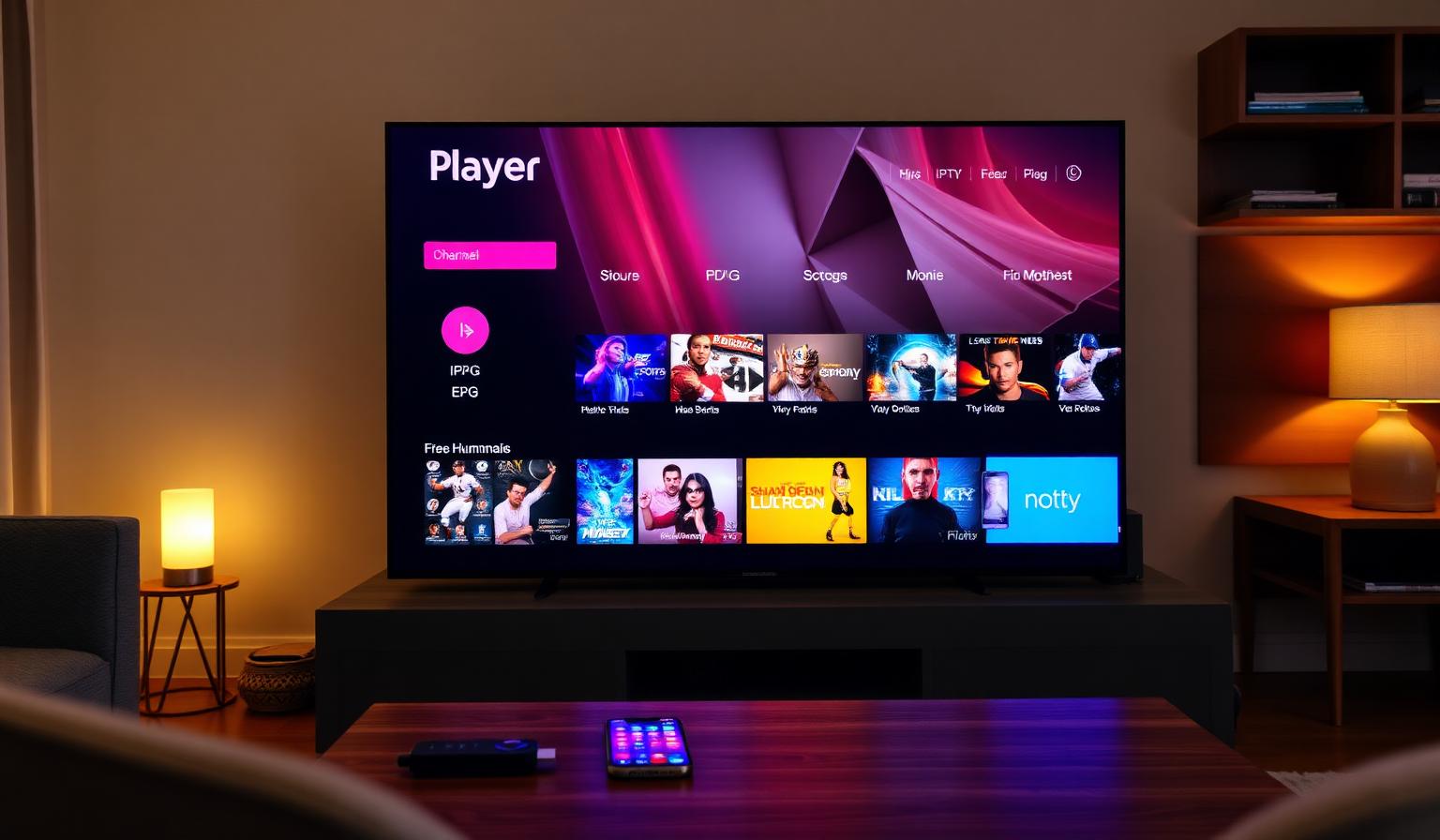
IBO Player has quietly become one of the most popular IPTV players in 2026 — and for good reason. It's lightweight, runs on almost every Smart TV and streaming device, uses a simple one-time activation instead of a monthly subscription, and works seamlessly with M3U and Xtream Codes playlists. Whether you're setting up live TV on a Samsung or LG Smart TV, an Amazon Firestick, an Android box or even your phone, IBO Player offers a clean, fast and stable streaming experience. In this guide we explain what IBO Player is, how to install and activate it, how to load your IPTV playlist, plus the best tips, pros and cons for a smooth 2026 setup.
What Is IBO Player?
IBO Player is a cross-platform IPTV application designed for end users who want a tidy interface for live TV, movies and series. Instead of paying a recurring fee, you activate the app once per device through the official IBO Player website, then connect it to any compatible IPTV service using a playlist URL or Xtream Codes credentials.
- Supports M3U, M3U8 and Xtream Codes playlists
- Built-in EPG (electronic program guide) for live channels
- VOD support with movie and series categories
- Available on Smart TV, Firestick, Android, iOS and MAG
- Multi-language interface, parental controls and favorites
Why IBO Player Is So Popular in 2026
Compared to subscription-based IPTV players, IBO Player stands out because the app cost is paid once per device and the experience stays consistent across platforms. It's a great match for households running a quality IPTV provider who want a polished player without complex configuration.
- Clean, modern interface optimized for remote control navigation
- Fast channel switching with low buffering on a stable connection
- Easy playlist management through a web portal
- Works on older Smart TVs that no longer get many app updates
- Great companion for travelers using a Firestick on the road
Step-by-Step: How to Set Up IBO Player
1. Install IBO Player on Your Device
- Samsung / LG Smart TV: search "IBO Player" or "IBO Pro Player" in the official app store and install.
- Firestick / Fire TV: search the Amazon Appstore or sideload the official APK.
- Android TV / Google TV: install from the Play Store.
- iOS / Android phones: available on the App Store and Play Store.
- MAG / set-top boxes: use the dedicated portal version where supported.
2. Note Your MAC Address and Device Key
Open the app — it displays your device's MAC address and a Device Key on the welcome screen. Keep both visible; you'll need them to activate and to add playlists from the web portal.
3. Activate the Device
Visit the official IBO Player website (e.g. iboplayer.com or iboproapp.com), enter your MAC address, complete the small one-time activation fee and confirm. Activation is per device and removes the trial limitation.
4. Add Your IPTV Playlist
From the same portal, log in with your MAC + Device Key, click "Add Playlist" and choose:
- M3U URL: paste the playlist URL from your IPTV provider.
- Xtream Codes: enter the server URL, username and password.
Save the playlist, then reload the app on your TV — channels, categories, EPG and VOD libraries appear automatically.
5. Optimize for the Best Experience
- Use Ethernet on your main TV for stable 4K streams
- Set DNS to 1.1.1.1 or 8.8.8.8 for faster lookups
- Enable EPG and configure parental controls if needed
- Mark favorite channels for one-click access
- Reboot router and device weekly to clear caches
IBO Player vs Other IPTV Players
IBO Player sits between simple players like Smart IPTV and feature-rich players like TiviMate. It's easier to set up than TiviMate, more polished than basic M3U players, and friendlier on Smart TVs that lack Android-based app stores. For a wider comparison, check our roundup of the best IPTV apps in 2026.
Pros and Cons of IBO Player
Pros
- • One-time activation fee — no monthly subscription
- • Available on Samsung, LG, Firestick, Android, iOS and MAG
- • Easy playlist management via a web portal
- • Clean interface with EPG, VOD and favorites
- • Works well on older Smart TVs
Cons
- • No built-in IPTV service — you supply the playlist
- • Activation is per device (each TV/Firestick separate)
- • Fewer power-user features than TiviMate
- • Quality depends entirely on your IPTV provider
Best Practices & Pro Tips
- Save your MAC address and Device Key somewhere safe — you'll need them for support.
- Use a quality IPTV provider with a stable EPG for the best on-screen experience.
- Group your favorite live channels for one-click access from the home screen.
- Update IBO Player when prompted to keep playback engines current.
- For travel, install IBO Player on a Firestick — see our best streaming solutions for travelers guide.
Conclusion
IBO Player in 2026 is a smart pick for anyone who wants a clean, reliable IPTV interface without the hassle of monthly app fees. Pair it with a quality IPTV service, follow the simple activation and playlist steps, and tune your network for stable streams — and you'll have a polished live TV and VOD experience on every screen in your home. Whether you're upgrading an old Smart TV, setting up a new Firestick or building a multi-device household, IBO Player is one of the easiest ways to bring everything together.
Need a stable playlist to pair with IBO Player? Take a look at our subscription plans and choose the one that matches your devices — clear options, no pressure.
Ready to start streaming?
Explore our subscription plans and get instant access to live TV, sports and a huge VOD library on any device.
View IPTV PlansFrequently Asked Questions
More from the blog
Complete guide to high quality streaming with VOD — best devices, internet speed needs, setup steps, pros & cons, and expert tips for the ultimate on-demand experience.
Complete guide to premium 4K streaming for IPTV — best devices, internet speed needs, HDR setup, pros & cons, and expert tips for stunning Ultra HD quality.